One photo · Six steps · One 14-second video

How to Do the Window Peeper Trend With One Photo

Upload one clear everyday photo of a consenting adult or one cat or dog. Choose the subject, room and quality, then generate a new 14-second 9:16 MP4 with the building approach, stare and curtain-close payoff.

No written promptNo background upload480p or 720pMP4 download

Written by Window Peeper AI editorial team · Updated October 22, 2026

Real AI result
The finished format: a vertical MP4 with the original trend audio. Generated faces, clothing, motion and room details can vary.

01 · Prepare the photo

Start with one subject the model can read clearly

The input is not a character sheet or background-free cutout. Use an ordinary photo with a natural setting. The image guides the subject’s recognizable face, fur, clothing and proportions; the selected room option guides the generated scene.

Use this

  • One consenting adult, or one cat or dog
  • A sharp, evenly lit face or head
  • A person shown from head to waist or knees, or an animal with its body visible
  • JPG, PNG, WebP or supported HEIC/HEIF up to 10 MB
  • An image you own or have permission to upload
Avoid this

  • Children, celebrities, public figures or group photos
  • Mirror selfies or phones covering the face
  • Dark, blurry or heavily filtered images
  • White-background cutouts, transparent PNG characters or multi-view boards
  • Photos where hats, glasses, hands or objects hide key features

02 · Make the video

How to make a Window Peeper video in six steps

The controls are deliberately narrow. You choose the subject route, photo, room treatment and output quality. The preset handles the repeated story structure, so there is no prompt box or editing timeline to configure.

  1. 01

    Choose Person or Animal

    Pick the control that matches the single subject in your photo. Person is for one consenting adult. Animal is for one cat or dog.

  2. 02

    Upload one everyday photo

    Upload a clear photo with a natural background. You do not need to cut out the subject or upload a separate room image.

  3. 03

    Choose the room treatment

    Leave Auto selected for a fitting room, or pick one of eight authored ideas such as Secret CEO Meeting, Grandma’s Living Room or Tiny Dollhouse Room.

  4. 04

    Choose 480p or 720p

    Standard 480p uses 12 credits. HD 720p uses 22 credits and is the better choice when you plan to post the result.

  5. 05

    Confirm permission and generate

    Confirm that you are allowed to use the photo, sign in if needed and submit the setup. Do not refresh away just to restart a running job.

  6. 06

    Review and download the MP4

    Watch the full result, check the subject, room, burger, stare, curtains and audio, then download the finished MP4 when it is ready to share.

Not sure which room to choose?

Use Auto for the simplest path. The eight named options are creative directions, not background-image uploads; the preview cards help you choose a tone, while generation uses the option name and text.

Open the generator

03 · Generation status

What happens after you press Generate

Credits are reserved

The site reserves 12 credits for 480p or 22 credits for 720p when the generation request is accepted.

The subject is prepared

An internal character reference is prepared from your photo. It is not shown as a separate public result.

The video renders

The job moves through preparation, rendering, validation and upload. Progress can resume after navigation.

The result becomes available

When complete, preview the private video, download the MP4 or delete the result from your account.

If the generation fails

Known failed or blocked jobs release the reserved credits automatically. An ambiguous provider submission may enter manual review instead of being submitted again, which prevents accidental duplicate charges.

Before you buy credits

Check the quality you want and compare the current one-time packs. Purchased credits do not expire, and larger packs lower the effective cost per HD video.

Compare video packs and credits

04 · Real examples

Three inputs show what the controls actually change

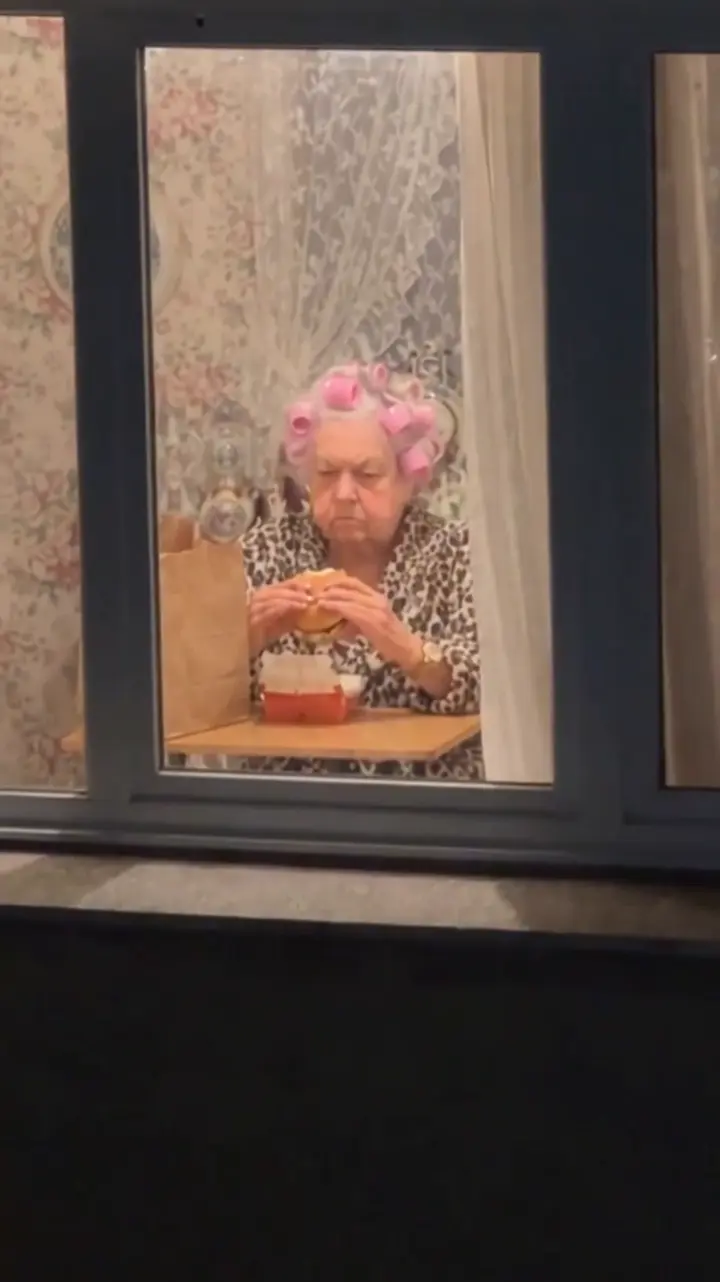
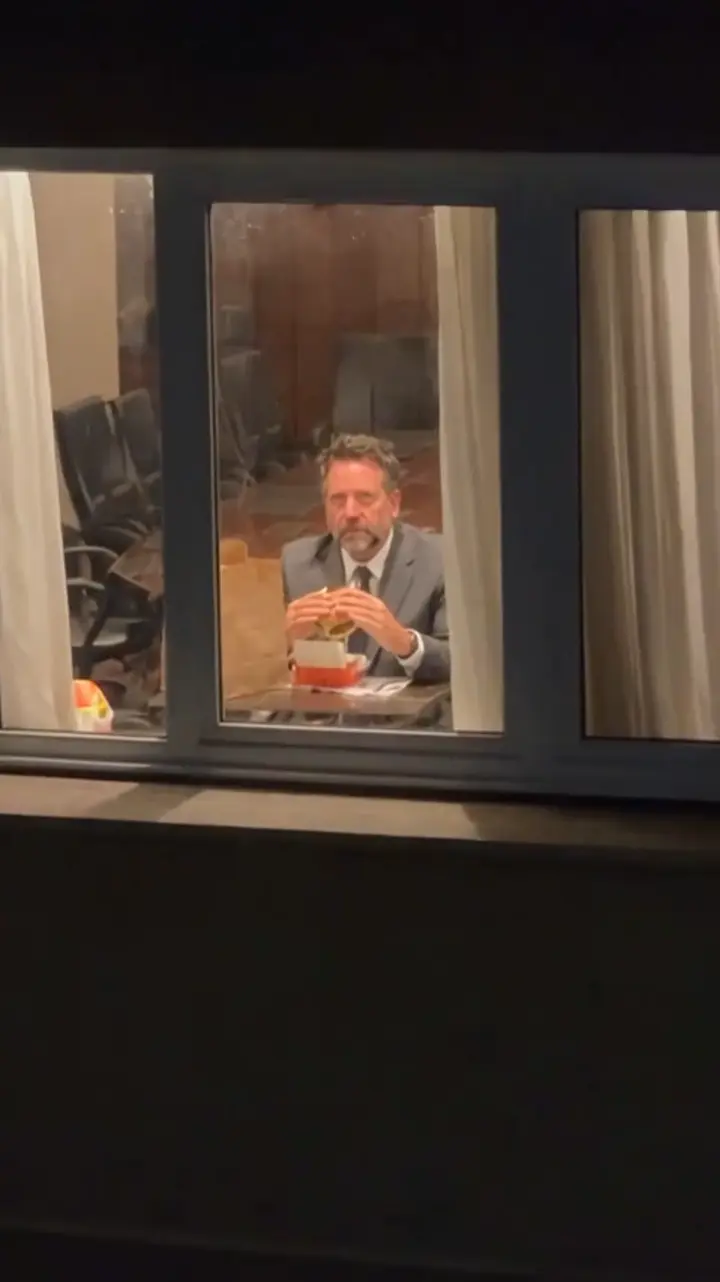
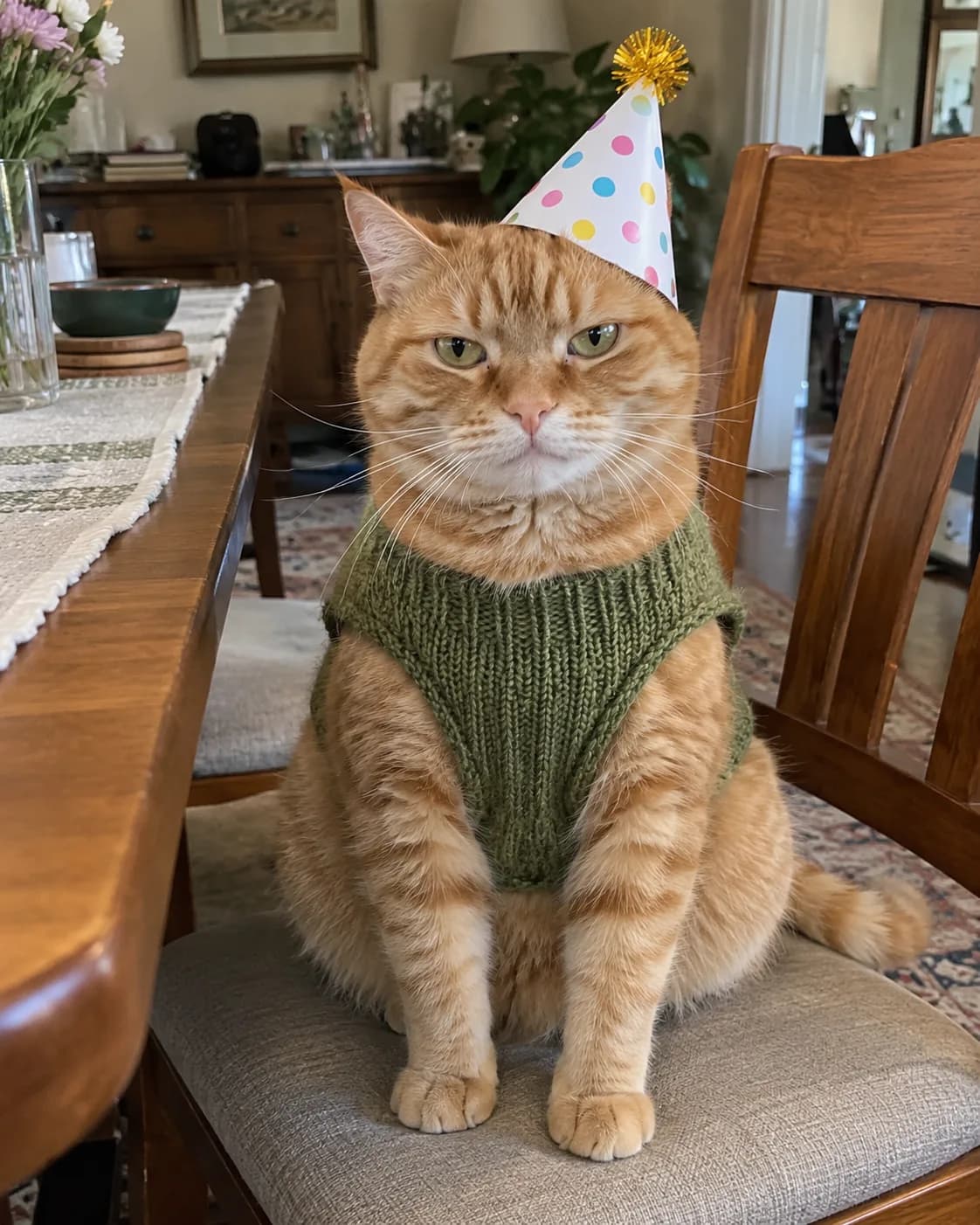
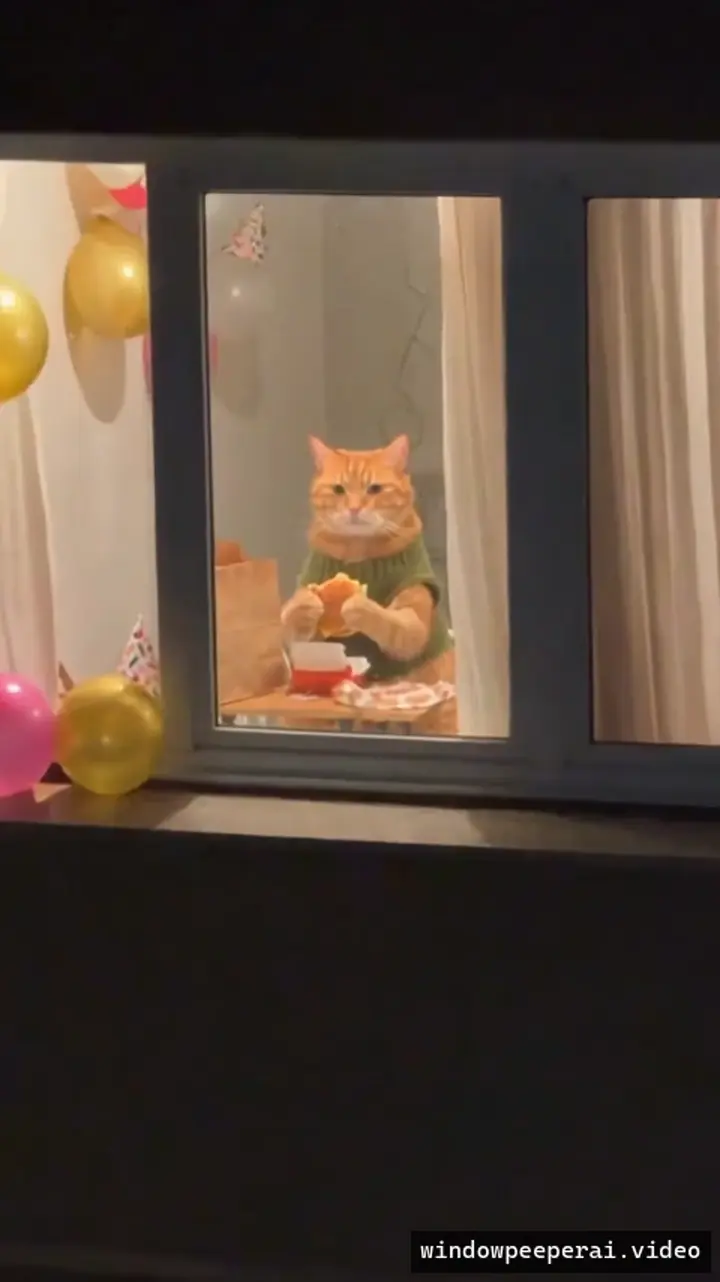
These are project-owned input-to-output pairs from the current workflow. They show the useful expectation: the source photo guides the lead subject, while the room choice changes the generated setting. They do not promise pixel-perfect identity or identical motion on every render.

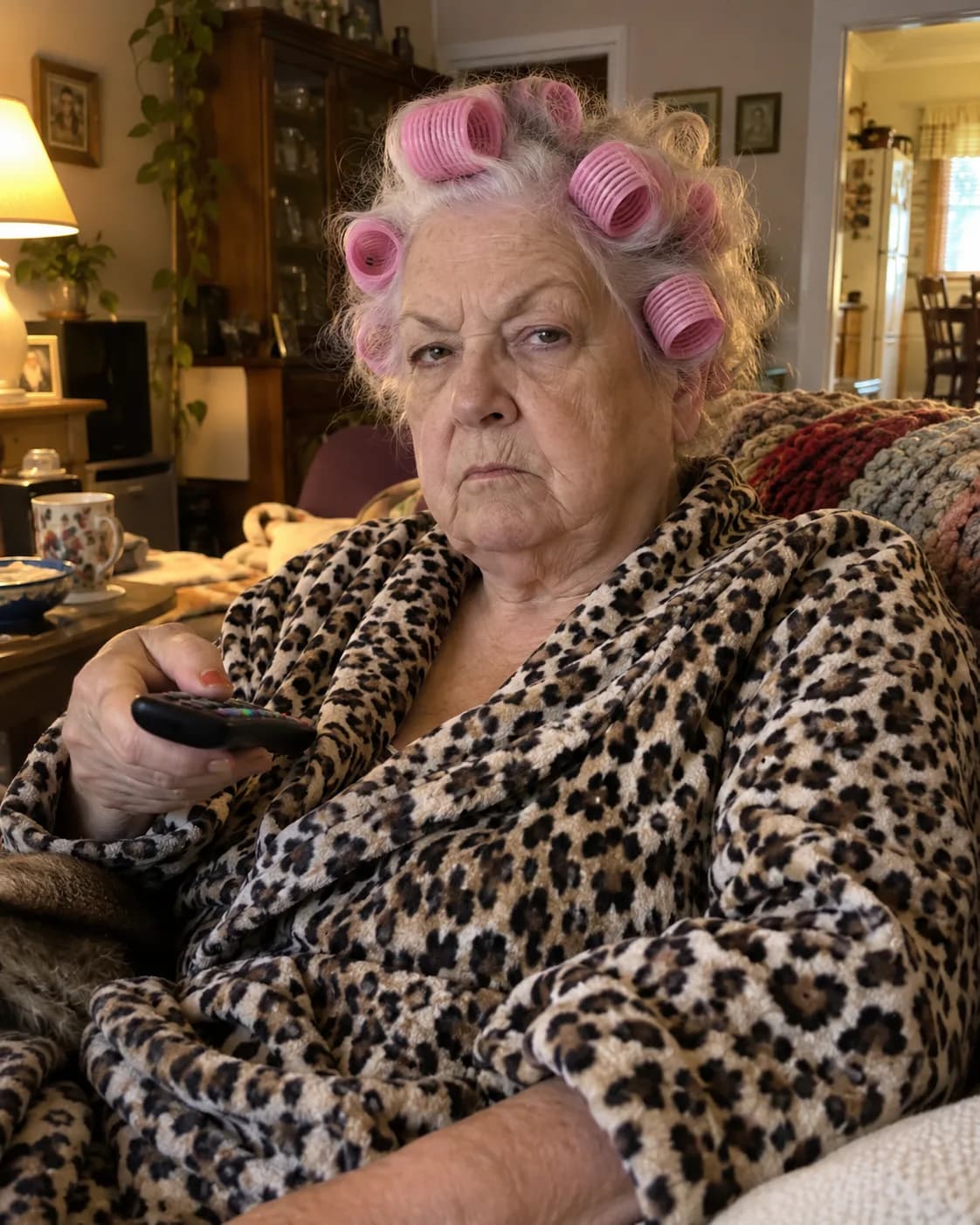
Everyday photo of an older adult used as a Window Peeper input
Input photo
AI-generated Window Peeper result retaining the adult's curlers and patterned clothing
AI result

Grandma’s Living Room

Everyday character photo

The curlers and patterned clothing remain recognizable in the result.

Everyday photo of a suited adult used as a Window Peeper input
Input photo
AI-generated Window Peeper result placing the suited adult in a nighttime room
AI result

Secret CEO Meeting

Suited adult photo

The formal outfit creates a visible contrast with the absurd burger stare.

Everyday cat photo used as a Window Peeper Animal input
Input photo
AI-generated Window Peeper result showing the cat inside the selected room treatment
AI result

Party After Everyone Left

Cat photo

The Animal route keeps the cat as the single lead subject.

05 · Troubleshooting

Fix the input first, then decide whether to regenerate

A second render cannot repair an ineligible or unreadable photo. Start with the exact symptom, check the input and only submit again when the previous job has a clear terminal state.

01

The photo will not upload

Confirm the file is a supported image up to 10 MB. If a HEIC/HEIF photo cannot be converted, export it as JPG and retry.

02

The face or subject changes too much

Use a sharper front-facing image with better light and fewer obstructions. Show more of the upper body or animal body, and remove heavy filters.

03

The room is not what you expected

Room cards communicate a creative direction, not an exact background image. Choose a more specific named option, or use Auto when the subject should lead the decision.

04

The job is still running

Leave the existing job in place and return to its saved progress. Do not create repeated submissions while the provider result is uncertain.

05

The finished file looks materially wrong

Review the whole 14 seconds. If the selected subject is missing or clearly replaced, the Window Peeper sequence or reference audio is absent, or the file is corrupted, request a quality review within 48 hours.

06 · Questions

Window Peeper how-to FAQ

Short answers to the questions that matter before you upload, spend credits or share a result.

How do I do the Window Peeper trend from one photo?

Choose Person or Animal, upload one clear everyday photo of a consenting adult or one cat or dog, select Auto or a room idea, choose 480p or 720p, confirm permission and generate. The finished result is a 14-second vertical MP4 with the recognizable building approach, stare and curtain-close sequence.

What kind of photo works best?

Use a sharp, evenly lit JPG, PNG, WebP or supported HEIC/HEIF photo up to 10 MB. Show one subject clearly. For a person, include the face and upper body without glasses, hats, hands or a phone blocking the face. For a cat or dog, show the body clearly.

Can I use a child, celebrity or group photo?

No. The current workflow accepts one consenting adult or one cat or dog. Do not upload children, public figures, celebrities, group photos or an image you do not have permission to use.

How long is a Window Peeper AI video?

The output is a 14-second 9:16 MP4. It follows three beats: the camera approaches a lit window, the subject eats and stares back, and the curtains close.

How many credits does one video use?

Standard 480p uses 12 credits and HD 720p uses 22 credits. Credits are reserved when you submit. A known failed generation releases the reserved credits automatically.

What if I want to use the CapCut template instead?

Use the separate Window Peeper template guide to find the current CapCut listing, verify the three story beats and follow the live media-slot instructions shown in the app.

Ready to make yours?

Put your photo behind the window

Choose one eligible photo, let Auto pick the room or add your own punchline with a named setting, then review the full result before posting.

Make your Window Peeper video